How to Use the VideoToBe Bot to Record Google Meet and Zoom
The VideoToBe bot joins your meeting as a participant, records everything, and delivers the full recording with a searchable transcript to your workspace — automatically. No screen recorder. No browser extension. No one needs to remember to press record.
This guide covers how to set it up for Google Meet and Zoom, what to expect during the meeting, and what you get when it's done.
What you need before you start
- A VideoToBe Pro account — the meeting bot is a Pro feature. Sign up or upgrade at videotobe.com
- The email address on your VideoToBe account must match the email you use to send calendar invites
This second point matters. When you add [email protected] to a calendar invite, the system reads the "From" address on that email to look up your VideoToBe account. If the addresses don't match, the bot will not join. You'll get a reply asking you to sign up or check your account email instead.
Method 1: Add to calendar invite (recommended)
This is the main way to use the bot. You add [email protected] as a guest when you create the calendar event. The bot gets scheduled automatically and joins at the right time.
For Google Meet
Step 1: Create your Google Calendar event
Open Google Calendar and create a new event as normal. Add your Google Meet link. Add your other guests.
Step 2: Add [email protected] as a guest
In the guests field, type [email protected] and add it just like any other guest.
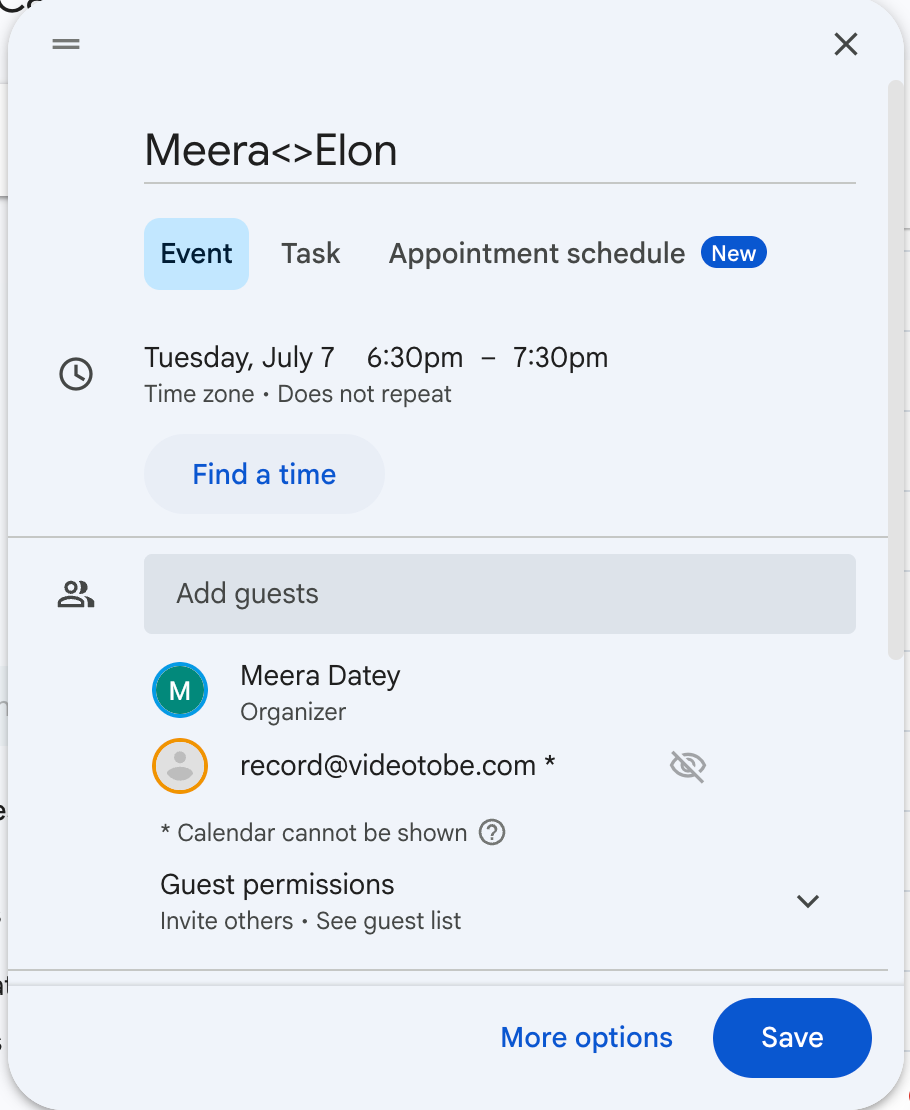
Step 3: Send the invite
Click Save. Google Calendar will send the invite to all guests including [email protected]. Within a minute or two, you will receive a confirmation email from VideoToBe.
If you do not get a confirmation email, the bot is not scheduled. The most common reason is that the email on your VideoToBe account is different from the one you sent the invite from. Check your account settings at videotobe.com and make sure they match.
Step 4: At meeting time — admit the bot
When your meeting starts, a participant called "VideoToBe Recorder" will appear in the waiting room. Click Admit to let it join. This is the same one-click flow you'd use to admit any other guest.
The bot does not have a camera or microphone. It records silently.
Step 5: End the meeting normally
When the meeting ends, the bot leaves automatically. You do not need to do anything.
For Zoom
Step 1: Create your Zoom meeting in Google Calendar
Create a new Google Calendar event and add the Zoom meeting link in the location or description field. Add your Zoom join link (the zoom.us/j/... URL) somewhere in the invite body.
Step 2: Add [email protected] as a guest
Same as Google Meet — add [email protected] to the guests field.
Step 3: Send the invite and wait for confirmation
Send the invite. You should receive a VideoToBe confirmation email within a minute or two confirming the bot is scheduled.
Step 4: At meeting time — admit the bot
The Zoom waiting room will show "VideoToBe Recorder" as a participant waiting to join. The host clicks Admit.
Step 5: End the meeting normally
The bot leaves when the meeting ends.
Method 2: Paste a meeting link manually
If you forgot to add the bot to the invite, or if you want to start a recording for a meeting that's already in progress, you can trigger the bot directly from the VideoToBe dashboard.
Step 1: Sign in and click Record Meeting in the left sidebar
Step 2: Paste your Google Meet, Zoom, or Microsoft Teams URL into the Meeting URL field
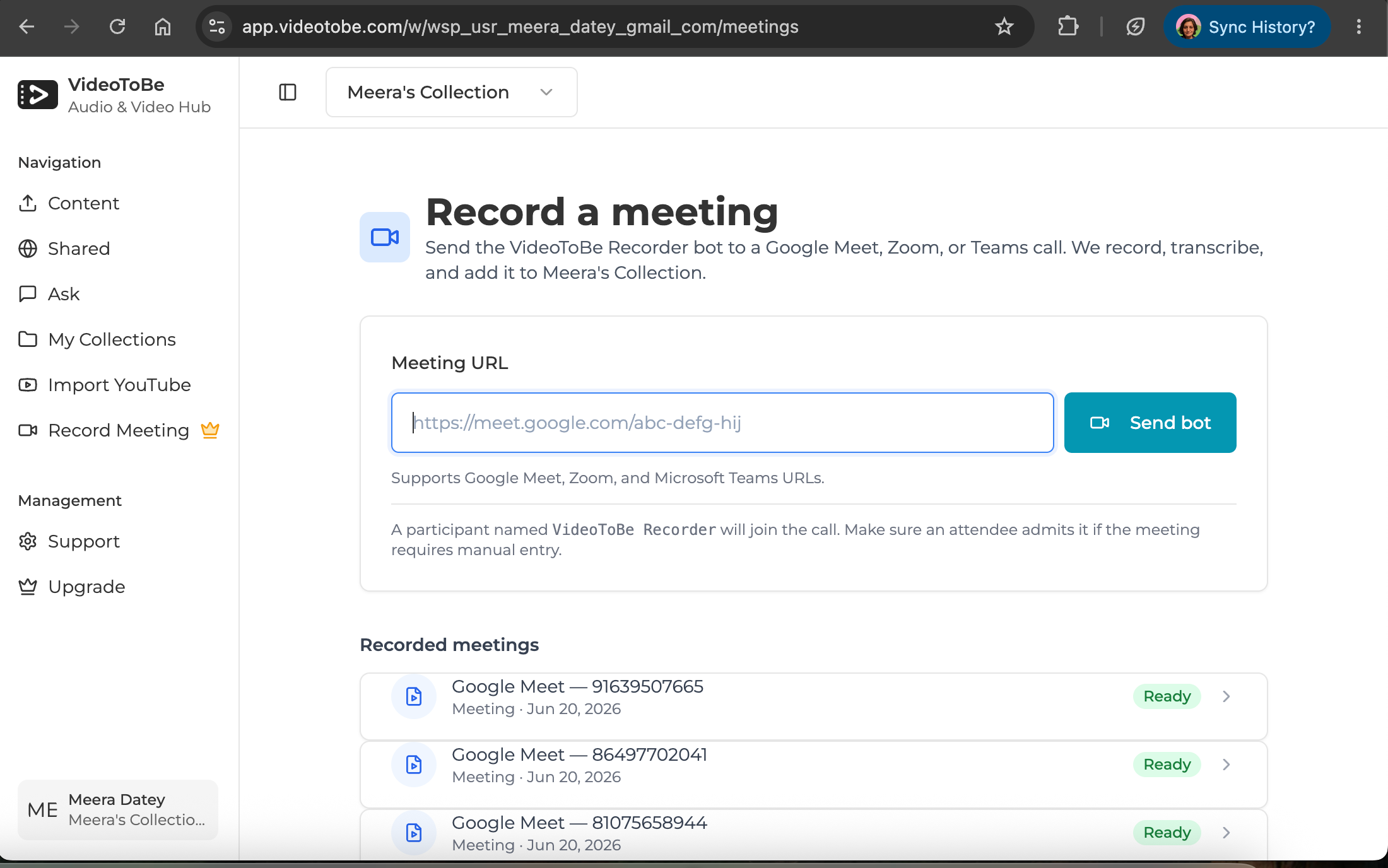
Step 3: Click Send Bot
The bot will join within a few seconds. You will see it appear in the waiting room just like the calendar invite method. Your past recorded meetings also appear on this page once they are ready.
What happens after the meeting
Within 15 minutes of the meeting ending, your recording is ready in your VideoToBe workspace.
You get:
- Full video recording (audio and video of all participants)
- Searchable transcript with timestamps
- Speaker labels where the bot could identify distinct voices
The recording goes into your Personal workspace by default. Only you can see it.
Sharing with your team
If you want other people in your organization to access the recording, move it to a shared workspace.
Step 1: Open the recording in your VideoToBe workspace
Step 2: Click "Move to workspace"
Step 3: Select the shared workspace you want to move it to
Step 4: Confirm the move
Everyone with access to that shared workspace can now watch the recording and read the transcript. They do not need a VideoToBe account to view it once shared.
Troubleshooting
I didn't get a confirmation email after adding the bot to my invite.
The bot is not scheduled. Check that the email address on your VideoToBe account matches the email you used to send the calendar invite. You can check and update your email at videotobe.com/settings.
The bot appeared in the waiting room but no one admitted it.
The recording did not happen. The host must click Admit for the bot to join. If you're running recurring meetings, remind the host that "VideoToBe Recorder" will appear in the waiting room and needs to be admitted.
The meeting was moved to a different time or link.
The bot is scheduled for the original time and URL from the calendar invite. If the meeting link changed, trigger the bot manually using Method 2 above. If the time changed, you can cancel the old recording in your VideoToBe dashboard and add the bot to the updated invite.
I added the bot to a recurring meeting.
The bot records only the first occurrence. For each subsequent meeting in the series, you need to add [email protected] again or trigger it manually.
The recording isn't in my workspace after 30 minutes.
Check your VideoToBe workspace. If it's not there, open videotobe.com and look under the activity log for any error messages. Contact support if the recording was admitted but never arrived.
Summary
| Step | Google Meet | Zoom |
|---|---|---|
| Add bot | Add [email protected] as calendar guest | Same |
| Confirmation | Email from VideoToBe within 1-2 min | Same |
| At meeting | Admit "VideoToBe Recorder" from waiting room | Same |
| After meeting | Recording + transcript in Personal workspace within 15 min | Same |
| Share | Move to shared workspace from recording page | Same |
Ready to record your next meeting?
Get Started with VideoToBe